

Order Delivery & Pickup Location Date Time
Price range: $50.00 through $260.00
This plugin allows buyers to choose their preferred Store, Order Delivery/Pickup Date and Time during checkout(Need to have Woocommerce installed first).
| 5 star | 0% | |
| 4 star | 0% | |
| 3 star | 0% | |
| 2 star | 0% | |
| 1 star | 0% |
Sorry, no reviews match your current selections
An innovative delivery scheduling plugin designed for retail stores.
Delivery & Pickup Location Date Time for WooCommerce features can help you provide speedy service and quick order fulfillment
Enable customers to choose their desired pickup/delivery date and time.
Schedule and manage deliveries according to customer
- Customers have the option to choose between pickup and delivery on checkout page.
- Customers have the option to choose date and time.
Methods of shipment
Certain online stores need their delivery schedules to align with specific shipping methods.
- Select one or multiple shipping methods
- Incorporate delivery date and time settings for shipping methods. Additionally, you can include extra charges if necessary.
Pickup Location
If you’re providing pickup services for your products, this option is tailored for you.
- Choose the product and select your desired pickup location.
- Add Multiple pickup location, address, phone number and email
- The date and time slot may vary based on the location chosen by the customer.
Express delivery options for same day and next day service
- Establish delivery fees for same-day and next-day delivery services.
- Delivery fees may vary depending on the time.
Minimum required delivery time
Store owners may need a certain amount of preparation time before their products are ready for delivery to customers.
- Set the minimum delivery time
- You can oversee the start time and end time for each day of the week, from Monday to Sunday.
Compatible with the WooCommerce Checkout block feature
- Accessible within the “Shipping Address” block
- Pickup location, delivery date, and time slot fields will appear accordingly.
Determine the delivery type before selecting the date.
Allow your customers to effortlessly choose between Pickup or Delivery options before entering their address or selecting the delivery date.
- Offer pertinent delivery dates based on the user’s selected delivery type preference.
- Ensure a seamless customer experience when they choose delivery dates.
Delivery/Pickups time slot interval
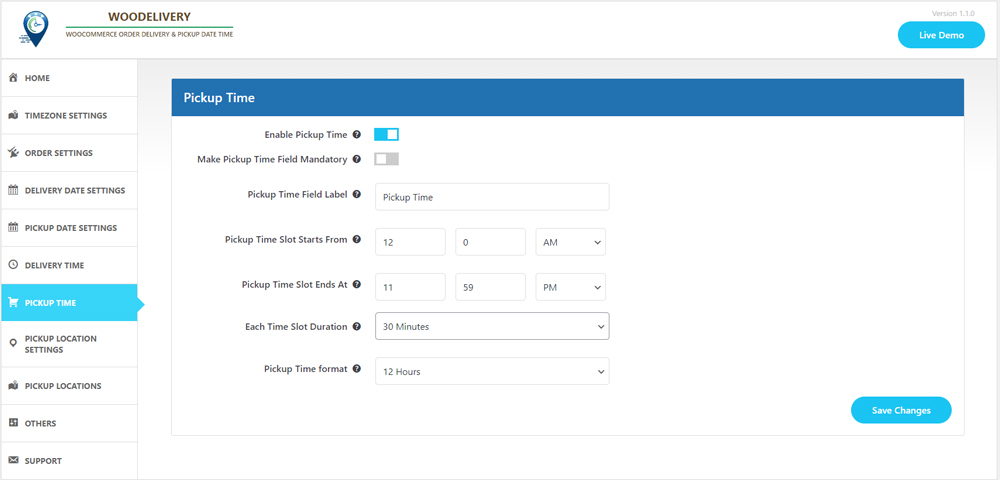
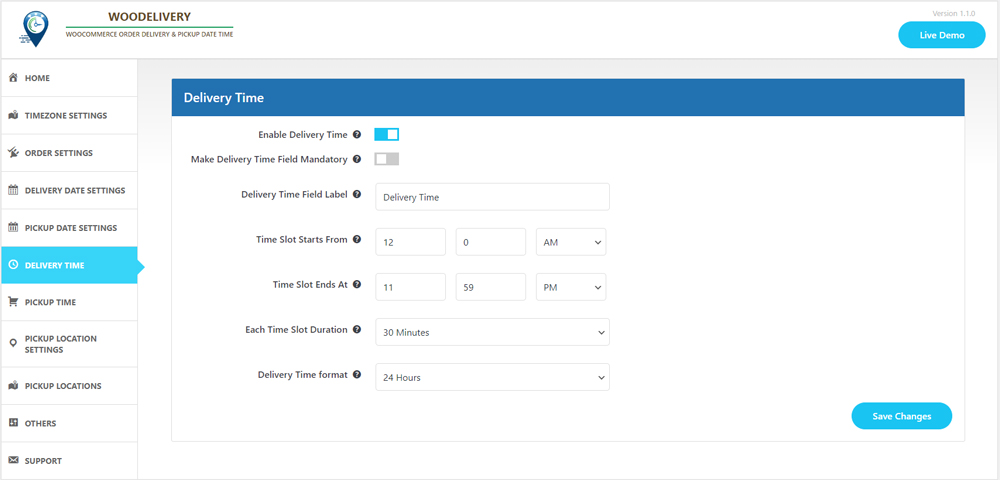
- Customers can choose between time slot intervals of 30 minutes or 60 minutes.
- You can configure the start time and end time for each day of the week, from Monday to Sunday.
Hold on, the list isn’t complete yet
- Issue reminders prior to deliveries.
- Establish a store-wide order limit for custom delivery schedules.
- Apply charges exclusively to orders that fall below a certain amount.
- Deactivate the weekdays on which product deliveries are not available.
- Make the delivery time field either mandatory or optional on the checkout page.
- Customize the labels for the delivery date and time fields according to your business needs.
- You have the option to include additional charges for specific time slots on each day of the week.
It’s not just about the plugin; it’s about the overall experience we deliver

10,000+ customers trust us

Outstanding customer support

Regular Product Updates

Exceptional code quality

We value customer feedback
Some Awesome Features
Vivamus sit amet risus ut eros tempus tincidunt eu porta orci. Vivamus vulputate porta quam, in pharetra nisi pharetra id.

Woodelivery
- Order Delivery & Pickup Date, Time & Location for WooCommerce
- Free WordPress Plugin

Plugin Overview
- Allows customers to select delivery or pickup date, time, and location directly at checkout.

The Problem
- No delivery scheduling
- Manual coordination
- Poor customer experience

The Solution
- Seamless checkout integration
- Customer flexibility
- Full store-owner control

Feature Overview
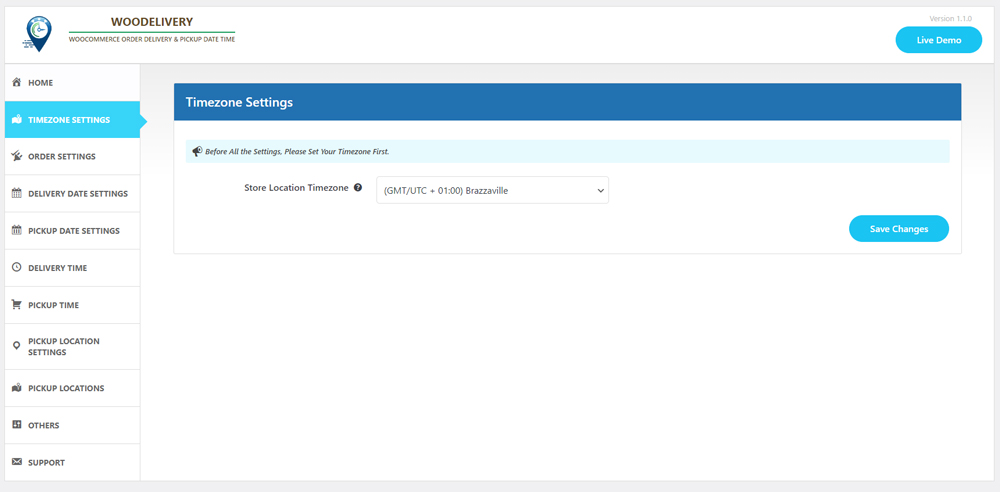
- Timezone Settings
- Order Reports
- Calendar View
- Checkout Customization

Timezone Settings
- Ensures accurate delivery and pickup scheduling based on store time zone

Order Reports
- View all order details including status, type, date, and time

Delivery & Pickup Calendar
- Dynamic responsive calendar showing daily delivery & pickup orders

Order Type Settings
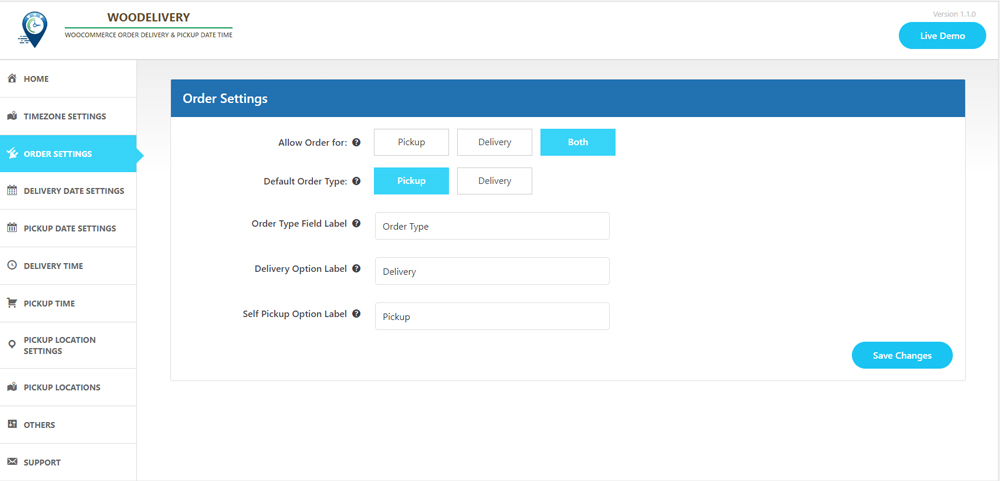
- Enable delivery, pickup, or both
- Custom labels and options

Date Settings
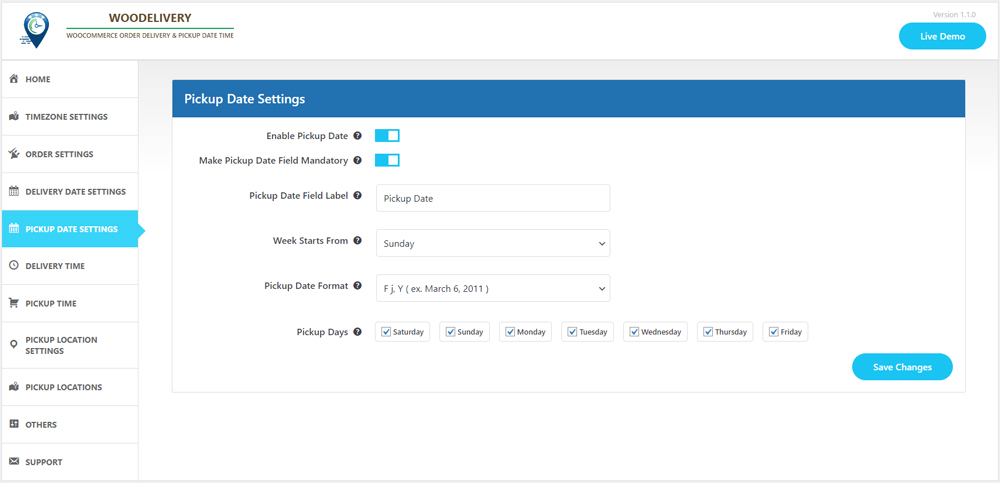
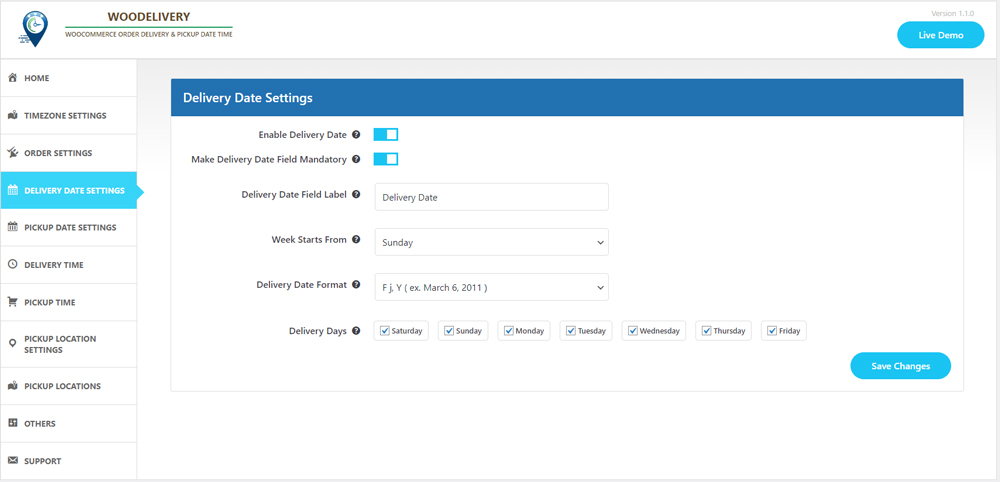
- Enable/disable date field
- Optional or mandatory dates
- Control delivery days

Off Days
- Block unavailable dates
- Add future off-days

Time Slots
- Enable/disable time selection
- Custom delivery & pickup time slots

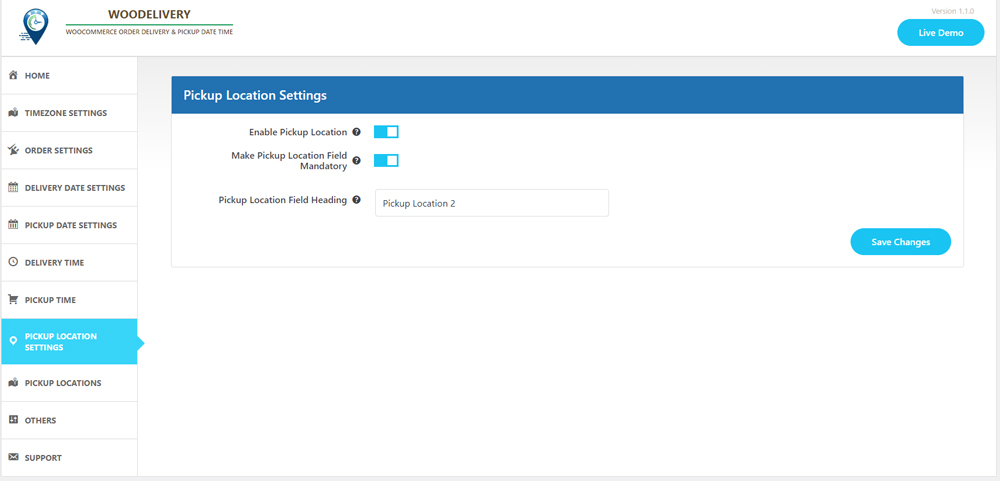
Pickup Location Settings
- Enable/disable pickup location field
- Optional or mandatory

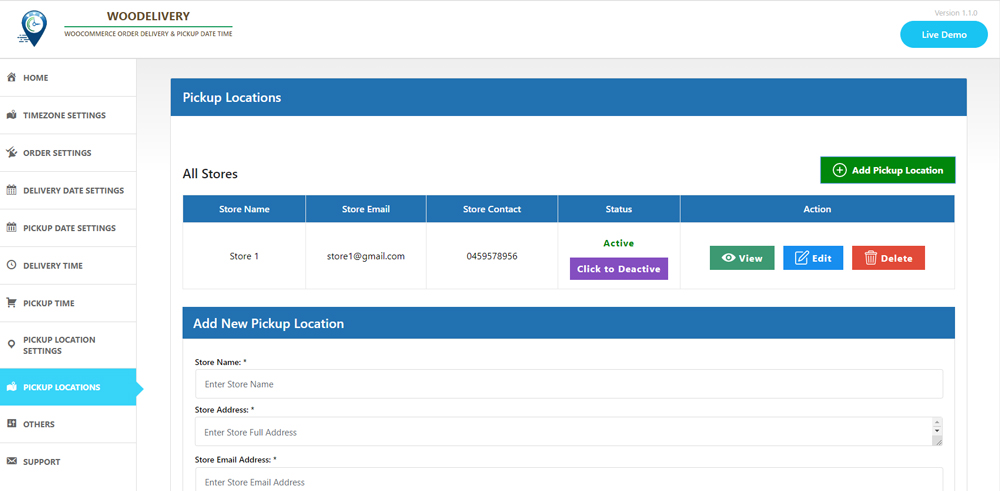
Pickup Stores
- Add and manage multiple store locations

Order Tips
- Enable/disable tips
- Custom tip amounts

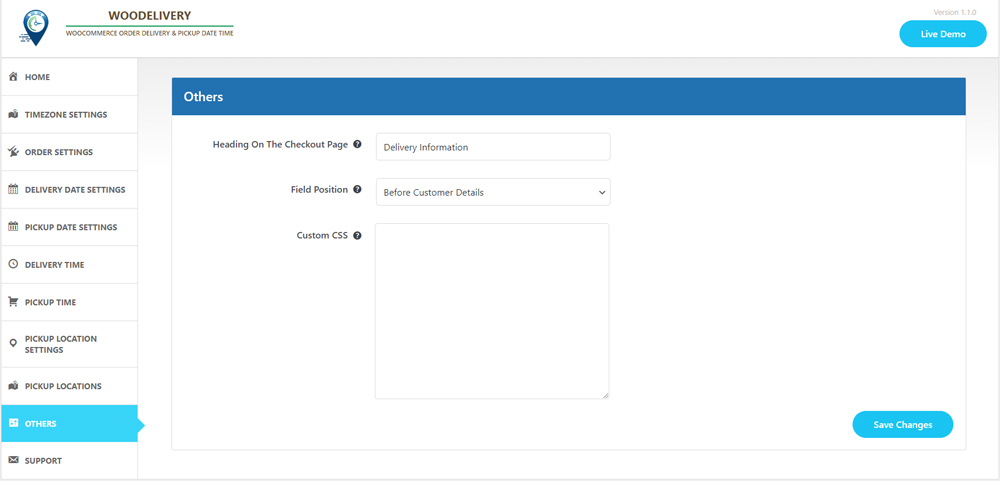
Checkout Customization
- Change headings, field positions, and apply custom CSS

Benefits
- Improved planning
- Better customer experience
- Less confusion

Use Cases
- Restaurants
- Local delivery businesses
- Retail & grocery stores

Get Started
- Install Woodelivery today
- Improve checkout & fulfillment
How to Download, Install and Activate The Plugin?
The process is very straight forward, Go to the
Just click on the Download Now and the plugin is downloading. After completing the download, follow the following steps-
- Must installed and activate ‘Woocommerce’ plugin first.
- Go to plugins > Add new > Upload Plugin from your WordPress dashboard
- Upload ‘webchunky- order-delivery-pickup-location-date-time-free-version.zip’
- Activate the plugin after the installation or through the ‘Plugins’ menu in WordPress.
- Select ‘Woo Delivery Pickup ODT’ from the admin menu and choose desired settings.
Not Seeing The Plugin Module on The Checkout Page, What’s The Problem?
You are not seeing the plugin module on the checkout page for several reasons. Here we mention some of the reasons we find
- Sometimes you accidentally make a product as a virtual product. Virtual or downloadable products don’t need the delivery or pickup option as they are not delivering physically.
- Sometimes others plugin has js error which blocks our plugin to load. You can easily check this situation from your browser console. When you are not seeing our plugin module on the checkout page although you set up the plugin, simply right-click on the mouse from the checkout page, select inspect element then click on the console tab. If you see any js error here, try to fix the error. Most of the time, this situation arises from your installed plugin.
How to Add/Manage new Stores with details?
To add new stores follow the following steps-
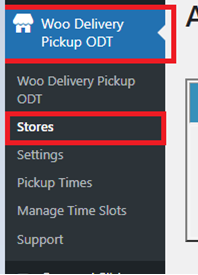
Select ‘Woo Delivery Pickup ODT’ > Stores from the admin menu wordpress dashboard.
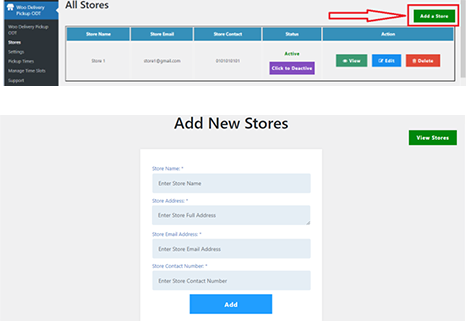
Click on ‘Add a Store’ Button and Fill up Store details with name, address, email, phone and click ‘Add’ button

Manage Stores
Be Careful About Some Plugin Settings
Our plugin has some features which are rarely used but those settings are needed. But sometimes our client misunderstanding those settings and set up them and as expected they are stuck and not finding any reason.
- Settings option named “Allow Order for”, Order can Only Delivery Option or Pickup Option or Deliver/Pickup both.
- You can Hide/Show time option from settings option named “Ask for time”.
- You can also Mandatory/Optional time option from settings option named “Pick/Delivery time field validation”.
- Settings option named “Pickup/Delivery interval time”, Set time interval 30/60 minutes.
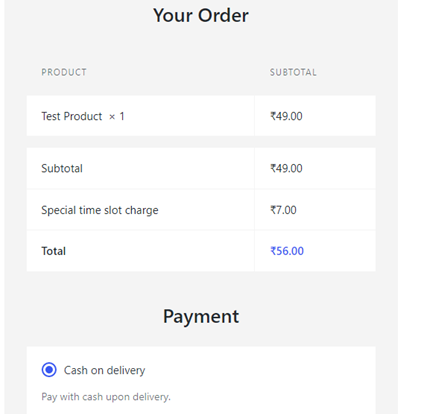
- Change default label text for Delivery/Pickup Label text, Date field text, Time field text, Special time slot charge text, Additional Charge text.
- Add/remove tip amount from settings option named “Tip Amounts”.
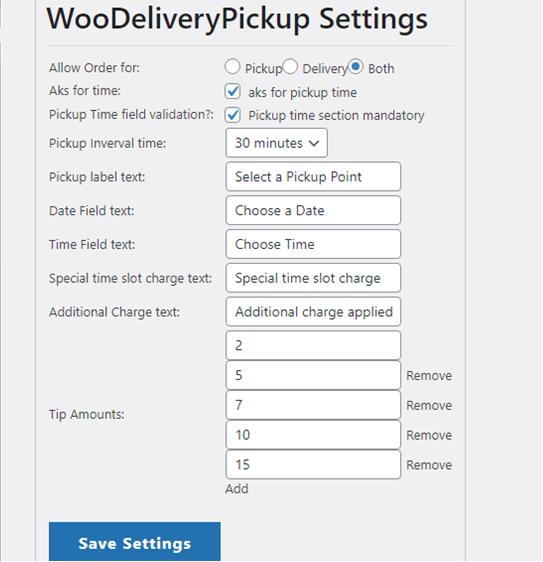
Allow different Order Types
Pickup only store
- If store is setup as pickup only then customers will see only pickup option on checkout page along with option to choose a preferred date and time slot, and of-course a pickup location. Date and time slot can be vary depending on what location is chosen by customer.
- If you have only one pickup location ie. that is your store address your customer will not see the location selection field on checkout page.
Delivery only Store
- If store is setup as delivery only then customers will see only delivery option on checkout page along with option to choose a preferred date and time slot, and of-course a delivery region/area. Date and time slot can be vary depending on what delivery area is chosen by customer.
- If you do delivery to everywhere ie; all over the state/country your customer will not see the location selection field on checkout page. In that case you will have a common delivery schedule for all.
Accept both delivery and pickup

Allow selecting Delivery & Pickup days
You can decide on which day(s) you will allow pickup of order(s) as well you can select all the seven days in a week or individuals day(s). When customers will select pickup date from widget or on checkout page, the calendar will allow to select only the dates those are on allowable pickup days(ie; on Sunday and Saturday only or on all days as you set it up in back-end). The same happens in case of delivery, customers will be able to choose any dates falls on the days you defined on ‘Woo Delivery Pickup ODT’ pluign settings page.
Autometic/Custom time slot Creation.
You just define when your delivery hours starts, when it ends. If there is any break time, just define at waht time ot starts and when ot stops. ‘Woo Delivery Pickup ODT’ pluign will automatically convert it to 30 minutes slots.
Custom slot:
Create your own time slot as much as you need, like 30 minutes long or one hour long time duration.
Delivery/pickup slots availability depending on week days
Create different time slots for each week day, so when you have regular time slot available from Monday to Friday, you can set different tiem slot for weekends, ie for Saturday & Sunaday.
List your pickup points
With this . ‘Woo Delivery Pickup ODT’ plugin you can set the locations from where customers can pickup their orders, set location list in back-end and customers will be able to select a location from pickup location drop-down. You can make your store as pickup only too.
‘Woo Delivery Pickup ODT’ plugin Customers side info.
- Show delivery/pickup date, time, location info on email
WooCommerce order delivery date time info is shown on customers email, whenever an order is placed and you can control what texts to show with delivery/pickup date and time.
- Show delivery/pickup date, time, location info on my account page
WooCommerce order delivery date time info is shown on customer’s my accoutn page under each order. You can control what texts to show with delivery/pickup date and time.

‘Woo Delivery Pickup ODT’ plugin Admin side info.
WooCommerce order delivery date time info is shown on admin email.
Order info to location adminstrator email.
Like admin new order notificaion email, a same email will be sent to location administrator email for the location receiving the delivery/pickup order. To recieve additional email for that location you must provide admin email for each loaction seperately.
Add additional fees for particular time slot

Additional fees for delivery on specific days.

Additional fees for pickup on specific days.
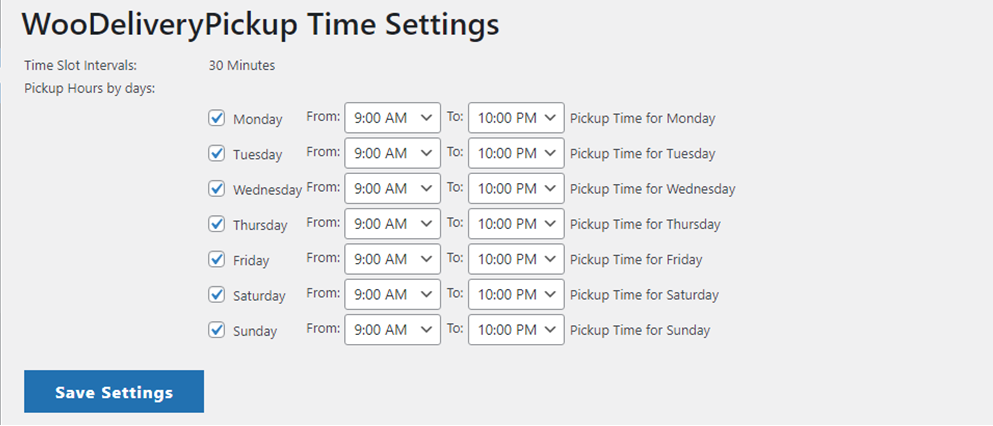
How To Disable any of day/days and Manage Delivery/Pickup timings.
If you want to disable one or more days for Delivery/Pickup, Select ‘Woo Delivery Pickup ODT’ > Pickup Times from the admin menu wordpress dashboard.
- Just uncheck the box and click on save settings button for disable week day/day’s.
- Also you can set Delivery/Pickup time periods for each an every days.
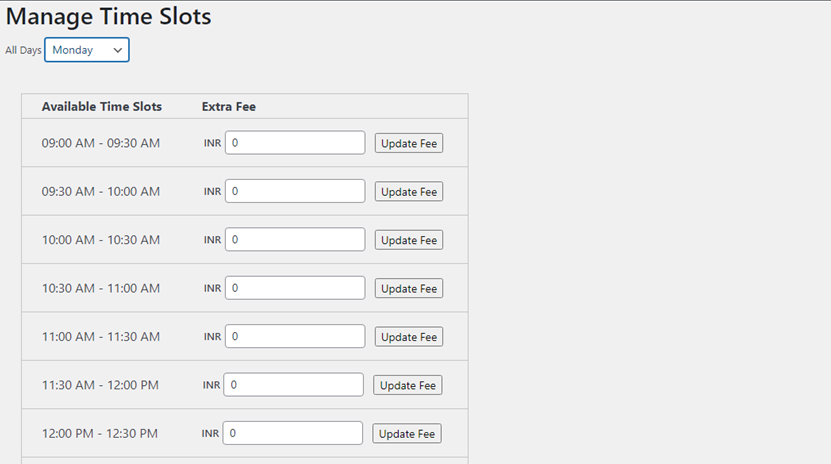
How to manage Time Slot for each days and add extra fees for particular time slot.
This settings are confusing you from our plugin. So, we discuss here about this settings. Select ‘Woo Delivery Pickup ODT’ > Manage Time Slots from the admin menu wordpress dashboard.
- You can add/update extra fee for each an every time slots.
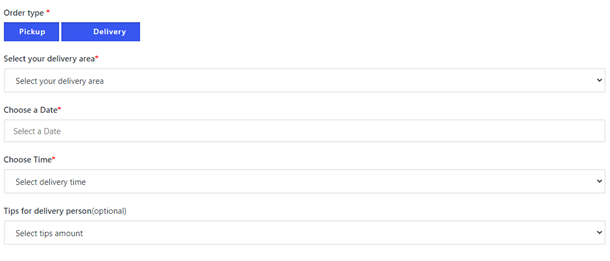
How its looks in checkout page.
Fatal Error Upon Plugin Activation.
If any error you see does not have the above in the error string that means we need to look at it. Please immediately mail us at support@webchunky.com
January 6, 2026
Tweak: Remove outline border of the plugin fields when focus active.